Block Shadow MCP & Validate Governance
Overview
You've created the sanctioned path (portal). Now block the unsanctioned direct path using Cloudflare Gateway / SWG so that only the portal remains as the approved way to access MCP tools.
What You Are Configuring
- Gateway HTTP policy to allow portal traffic
- Gateway HTTP policies to block shadow MCP traffic at three layers:
- Hostname layer — known MCP servers and
mcp.*subdomains - URI path layer — standard MCP endpoint paths (
/mcp,/mcp/sse) - DLP body layer — MCP JSON-RPC protocol signatures in HTTP request bodies
- Hostname layer — known MCP servers and
Step 1: Create Gateway Allow Rule for Portal
First, explicitly allow your sanctioned portal domain.
- Go to dash.cloudflare.com/one
- Navigate to Traffic policies > Firewall policies > HTTP
- Click Add a policy
- Configure:
| Field | Value |
|---|---|
| Policy name | Allow sanctioned MCP portal |
| Traffic matches/Selector | Host |
| Traffic matches/Operator | is |
| Traffic matches/Value | mcp-portal.<your-lab-domain> |
| Action | Allow |
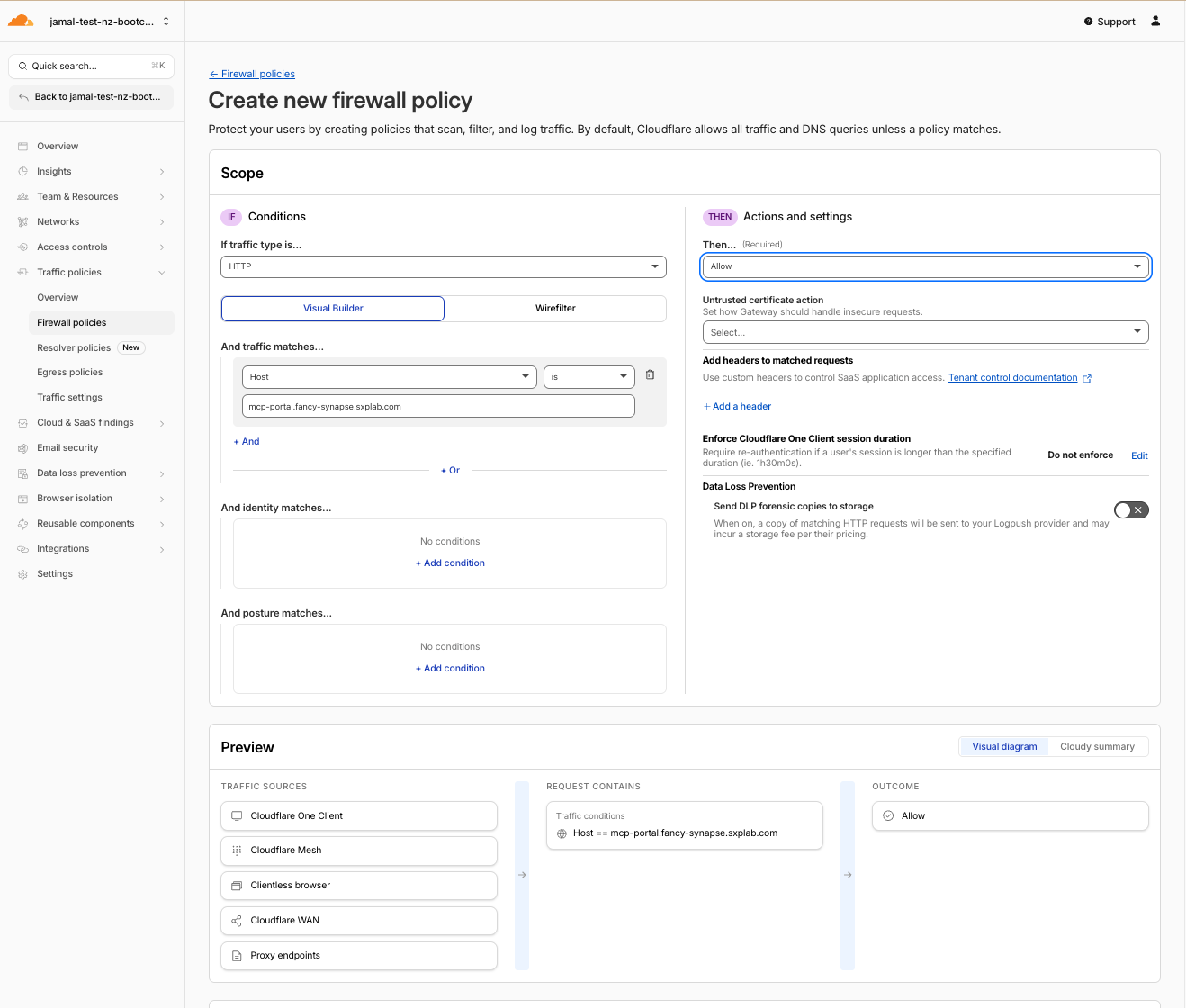
- Click Create policy
This Allow rule must be above the Block rule you create next. Gateway evaluates policies top-to-bottom.
Step 2: Create Defense-in-Depth Shadow MCP Block Policies
A single host-based block rule only catches the one server you already know about. Real shadow MCP servers won't announce themselves — an employee could stand up tools-api.internal-corp.com/v2/invoke with no "mcp" anywhere in the URL or path.
Use three layers of detection. Only your sanctioned portal is allowed; anything that looks like MCP traffic is blocked.
Layer 3 First — Create the DLP Detection Entries
DLP scans the HTTP request body for MCP JSON-RPC signatures. This is the deepest layer — it catches stealthy servers that bypass hostname and URI checks.
Create Detection Entries
- Navigate to Data Loss Prevention > Detection entries
- Click Add entry
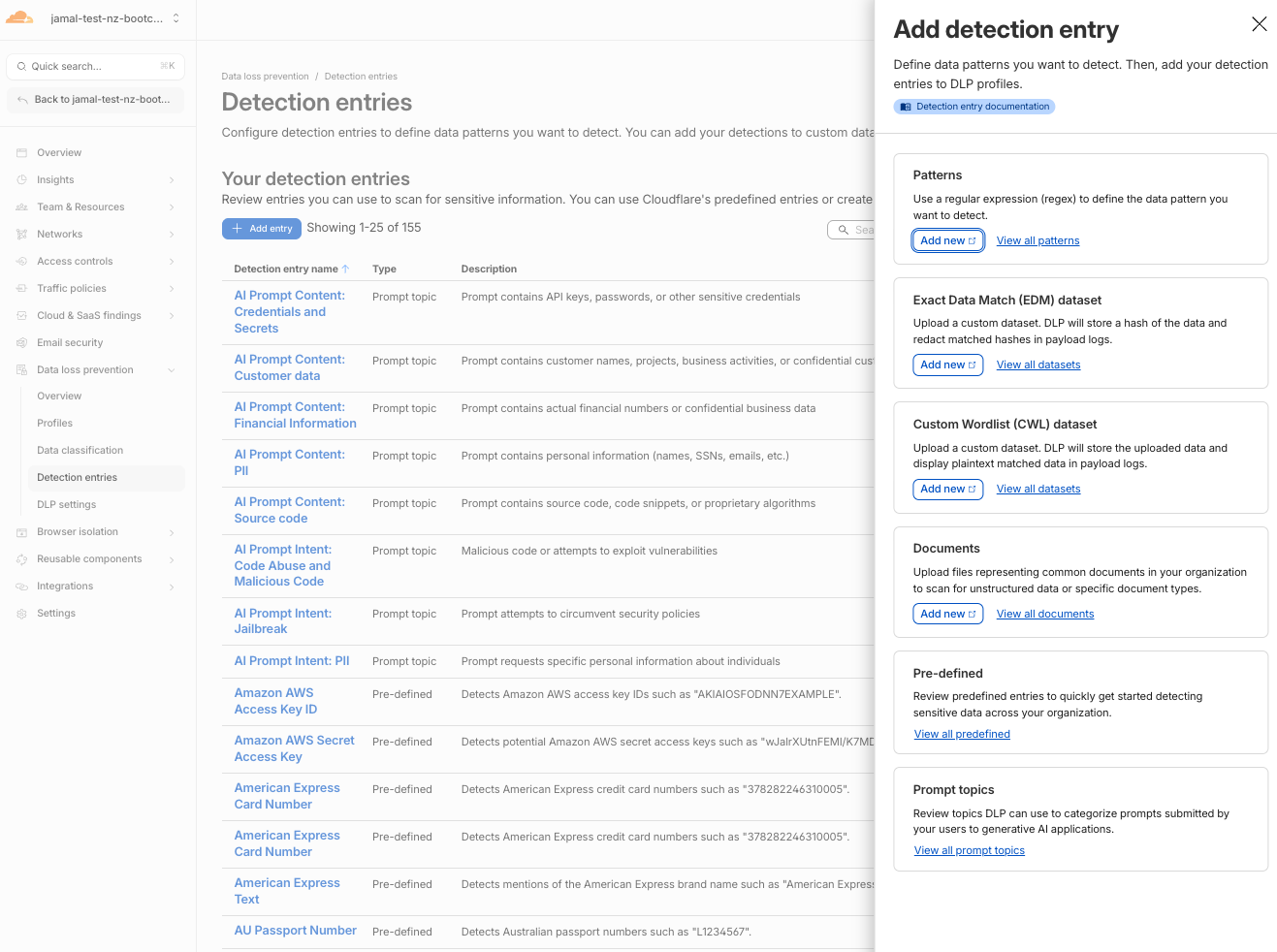
- Select Patterns > click Add new
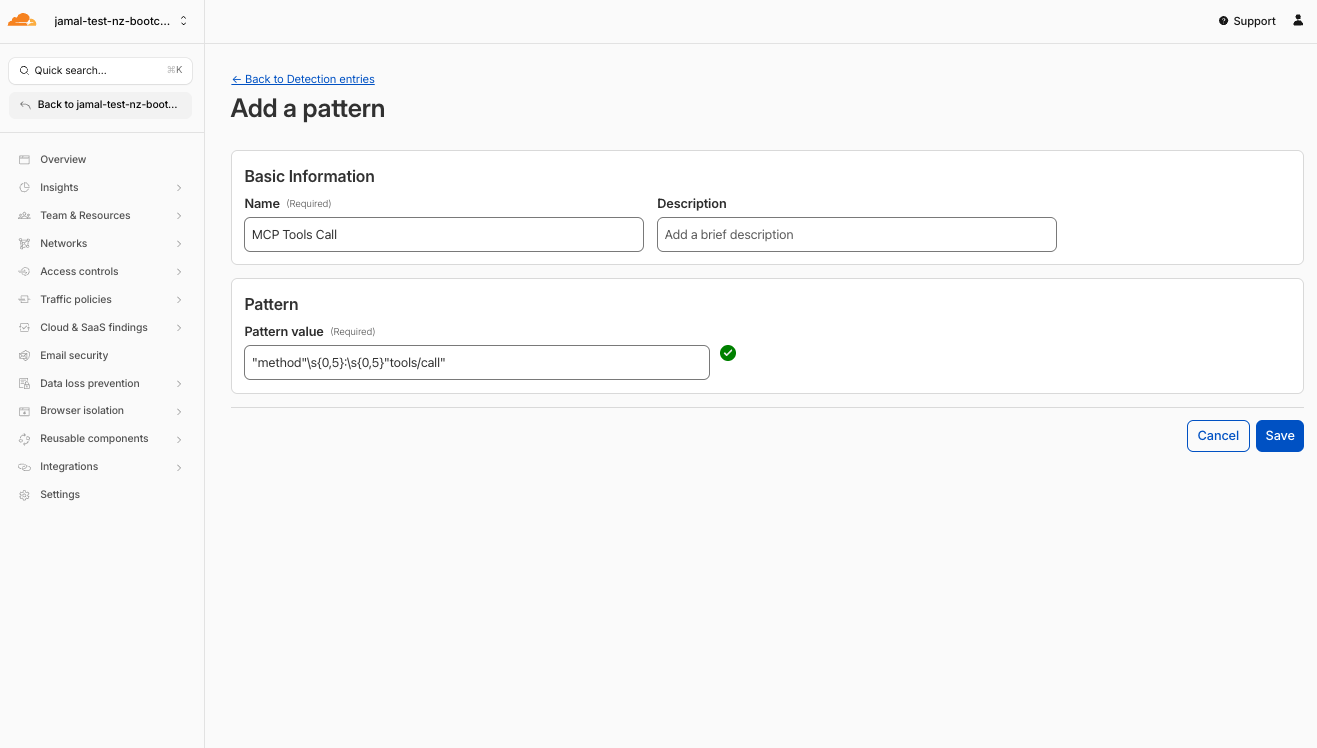
- A new tab opens — configure the first pattern:
| Field | Value |
|---|---|
| Name | MCP Initialize |
| Regex | "method"\s{0,5}:\s{0,5}"initialize" |
-
Click Validate regex to confirm the pattern is valid
-
Click Save
-
Repeat Add entry > Patterns > Add new for the remaining 4 patterns:
| Entry Name | Regex Pattern |
|---|---|
| MCP Tools Call | "method"\s{0,5}:\s{0,5}"tools/call" |
| MCP Tools List | "method"\s{0,5}:\s{0,5}"tools/list" |
| MCP Resources Read | "method"\s{0,5}:\s{0,5}"resources/read" |
| MCP Protocol Version | "protocolVersion"\s{0,5}:\s{0,5}"202[4-9] |
Create the DLP Profile
- Navigate to Data Loss Prevention > Profiles
- Click Create profile
- Name it:
MCP Protocol Detection - Click Add existing entries
- Select all 5 MCP pattern entries you just created:
- MCP Initialize
- MCP Tools Call
- MCP Tools List
- MCP Resources Read
- MCP Protocol Version
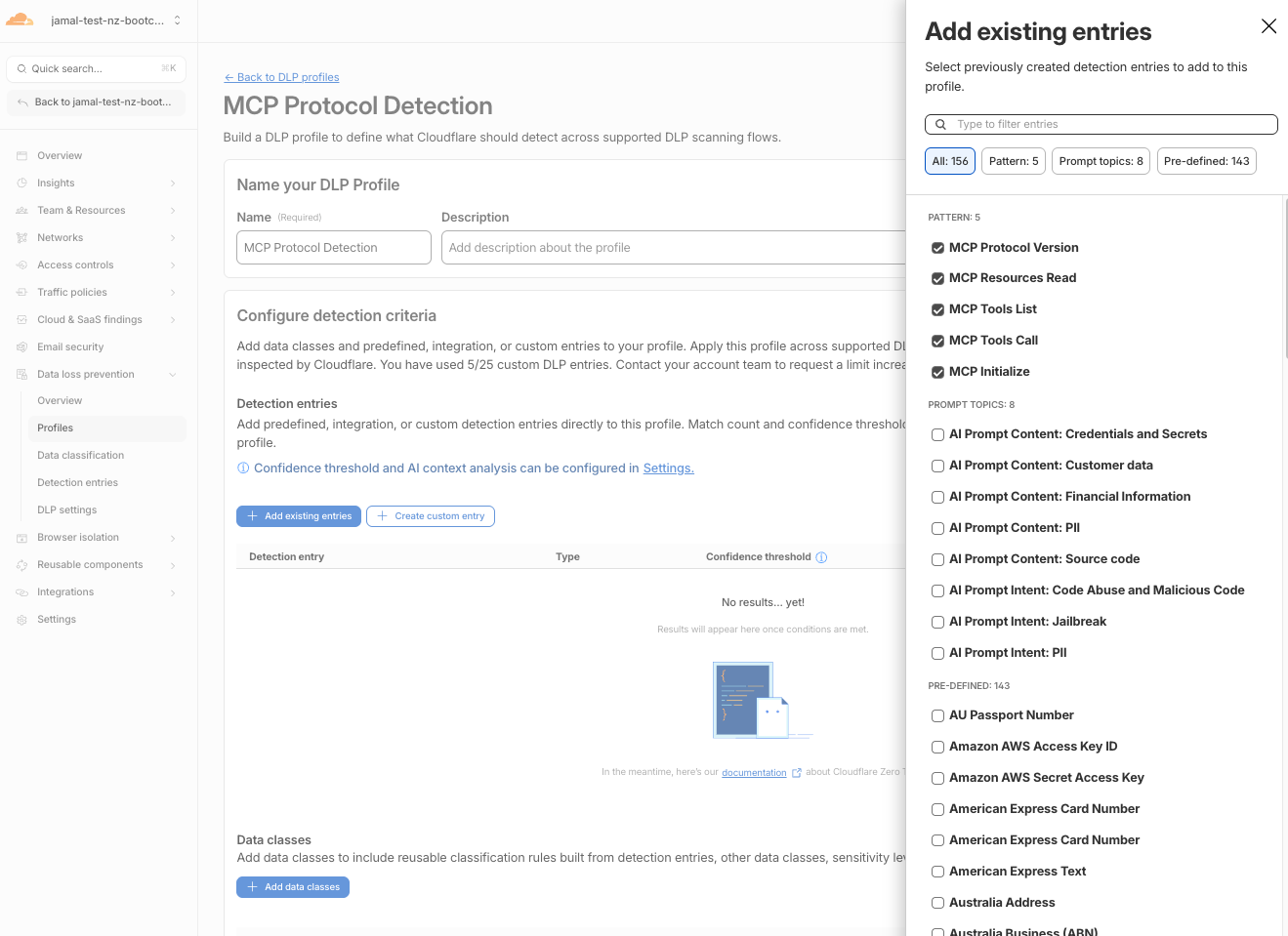
- Click Confirm
- Click Save profile
We will use this new DLP profile in HTTP policies to detect and block MCP traffic in Layer C section.
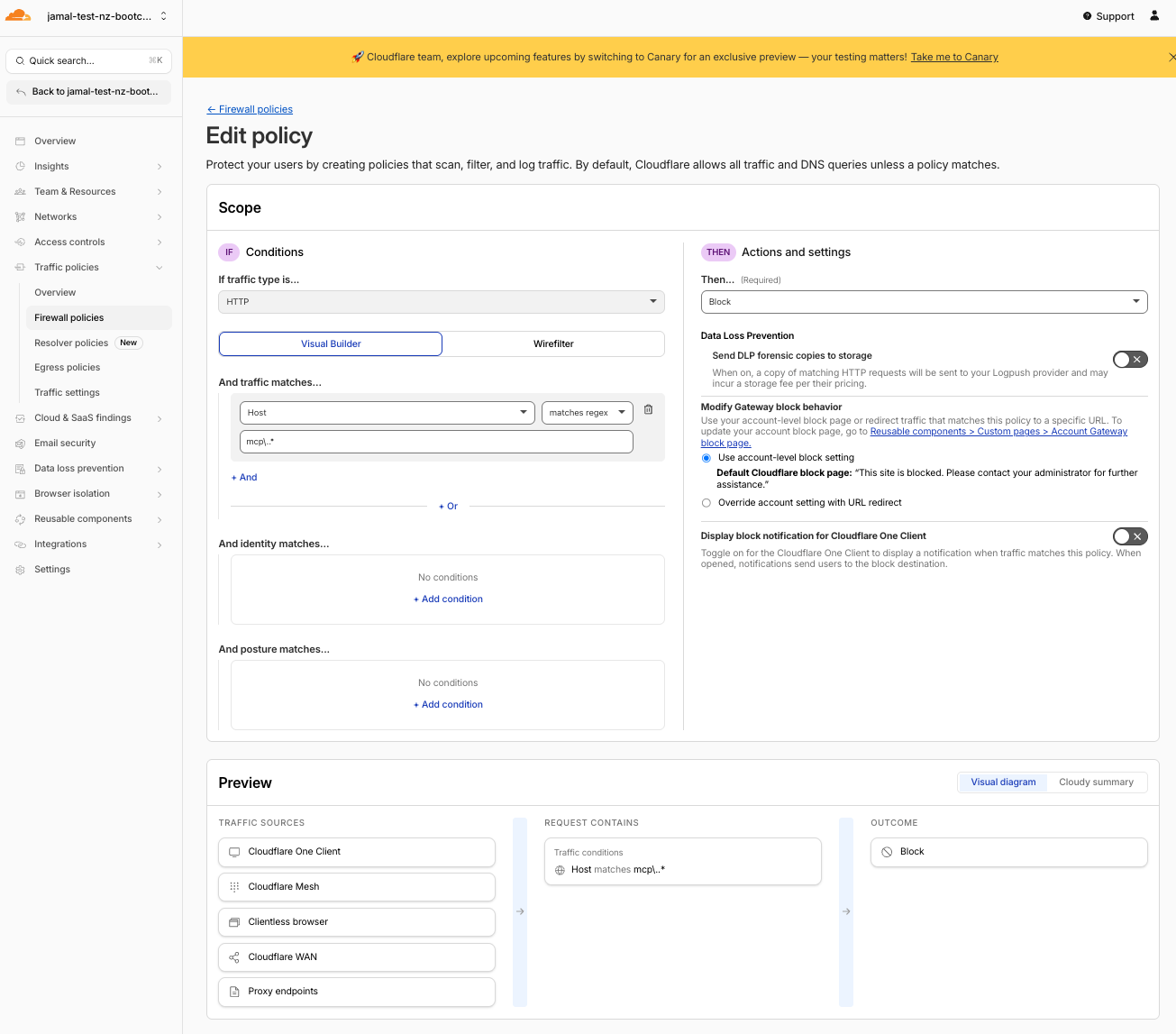
Layer A — Block Known MCP Hostnames
Catches obvious MCP services and wildcard mcp.* subdomains.
- Navigate to Traffic policies > Firewall policies > HTTP
- Click Add a policy
- Configure:
| Field | Value |
|---|---|
| Policy name | Block MCP hostnames |
| Traffic matches/Selector | Host |
| Traffic matches/Operator | matches regex |
| Traffic matches/Value | mcp\..* |
| Action | Block |
- Click Create policy
The regex mcp\..* catches any hostname starting with mcp.. In production you can also add specific known services like mcp.stripe.com using the in operator.
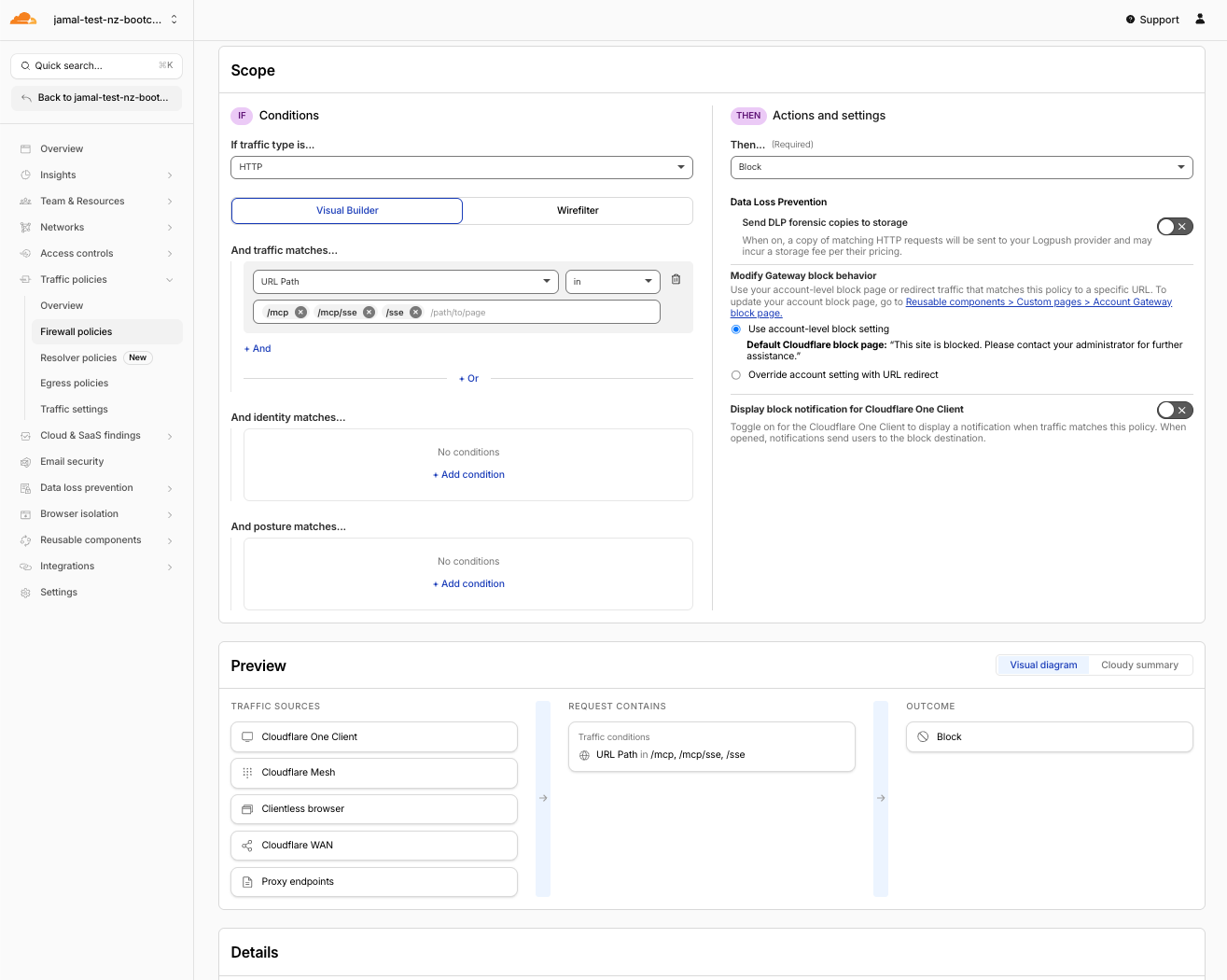
Layer B — Block MCP URI Paths
Catches standard MCP endpoint paths even when the hostname is generic.
- Click Add a policy
- Configure:
| Field | Value | comment |
|---|---|---|
| Policy name | Block MCP URI paths | |
| Traffic matches/Selector | URL Path | |
| Traffic matches/Operator | in | |
| Traffic matches/Value | /mcp, /mcp/sse, /sse | use tab for next entry |
| Action | Block |
- Click Create policy
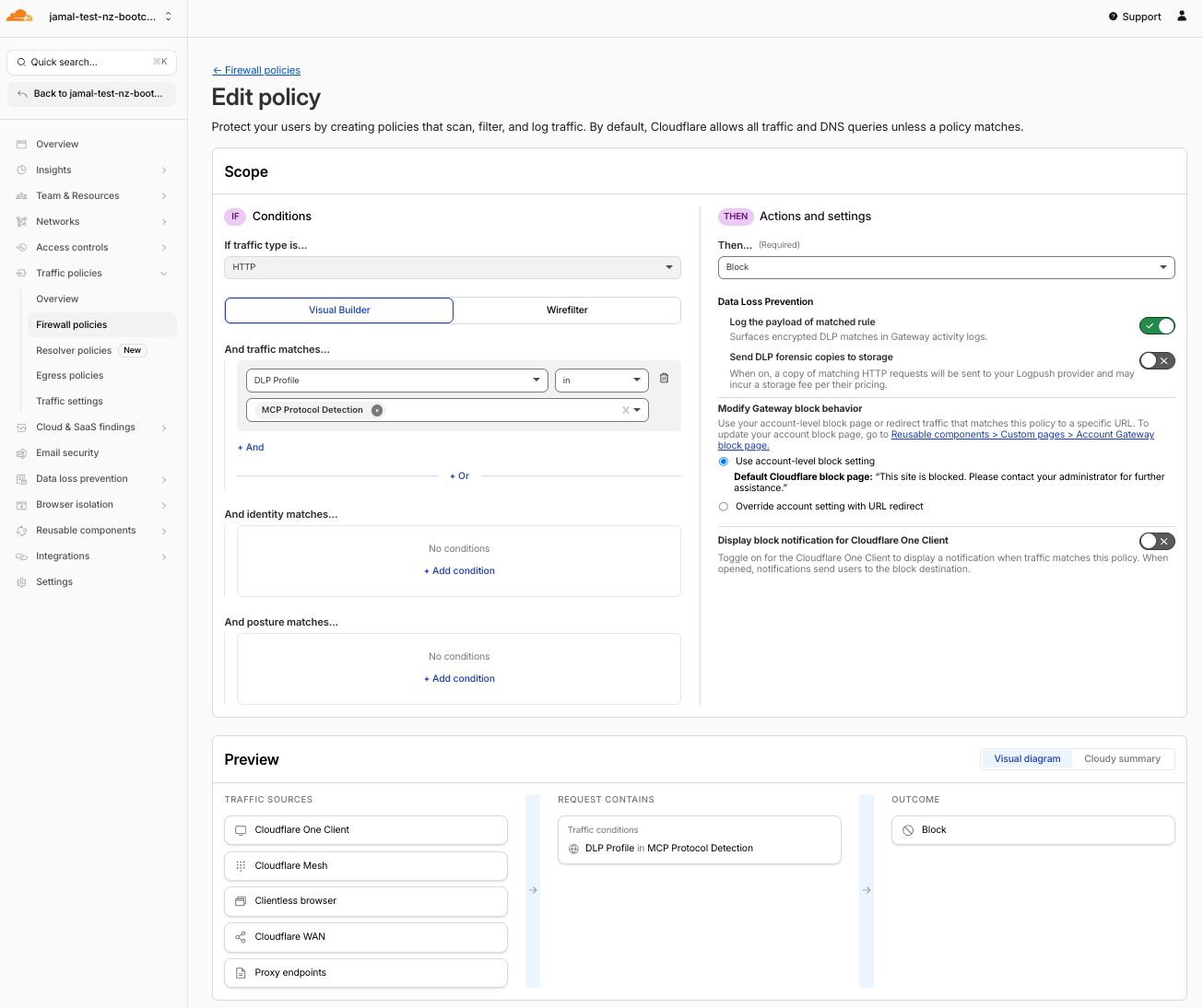
Layer C — Block MCP JSON-RPC Traffic via DLP
Catches stealthy MCP servers that hide their hostname and path but still speak MCP JSON-RPC in the request body.
- Click Add a policy
- Configure:
| Field | Value |
|---|---|
| Policy name | Block shadow MCP via DLP |
| Traffic matches/Selector | DLP Profile |
| Traffic matches/Operator | in |
| Traffic matches/Value | MCP Protocol Detection |
| Action | Block |
- Click Create policy
Verify Policy Order
Gateway evaluates policies top-to-bottom. Your order should be:
Allow sanctioned MCP portal(top)Block MCP hostnamesBlock MCP URI pathsBlock shadow MCP via DLP(bottom)
If your policies are not in the correct order, click and drag them up or down in the Gateway policy list to reorder.
Why Three Layers?
| Layer | Catches | Misses |
|---|---|---|
Hostname (mcp.*, known services) | Obvious MCP servers | Servers with generic hostnames |
URI path (/mcp, /mcp/sse) | Standard MCP endpoints | Custom paths like /v1/tools |
DLP body ("method": "tools/call") | Any MCP JSON-RPC traffic | Nothing — if it speaks MCP, the body reveals it |
Shadow MCP servers can disguise their hostname as
api.company.comand their path as/v2/invoke. Layers A and B miss this entirely. But they still send"method": "tools/call"in the HTTP body. Layer C catches them because the protocol signature is in the payload.
Step 3: Test — Stealthy Direct MCP Is Now Blocked
- Go back to MCP Inspector
- Enter the stealthy direct MCP server URL (no "mcp" in hostname or path):
https://kiwistore-shadow.mythingy.io/pcm - Set Transport Type to Streamable HTTP
- Click Connect
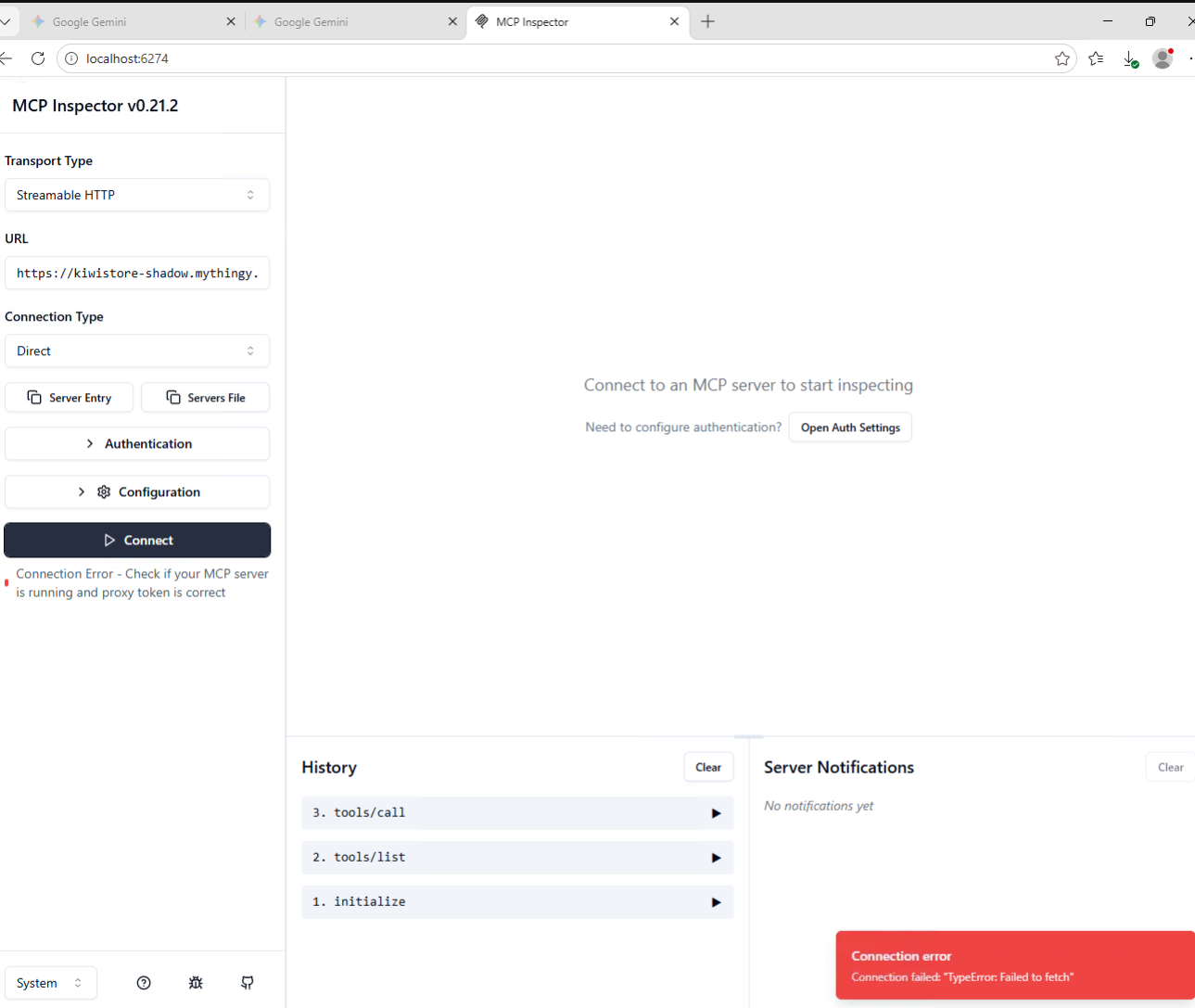
Expected Result
Connection fails. Gateway blocks the request.
This URL deliberately avoids "mcp" in both hostname (kiwistore-shadow) and path (/pcm):
- Layer A (
mcp.*hostnames) → misses — hostname doesn't start withmcp. - Layer B (
/mcppaths) → misses — path is/pcm, not/mcp - Layer C (DLP body inspection) → blocks — the HTTP request body contains
"method": "tools/call"and other MCP JSON-RPC signatures
This proves that even when shadow MCP servers try to hide, DLP body inspection catches them.
For this to work, your device's traffic must flow through Cloudflare Gateway (WARP/Cloudflare One Client connected). If WARP/Cloudflare One Client is not active, the facilitator will demonstrate the blocked behavior.
Step 4: Test — Portal MCP Still Works
- In MCP Inspector, enter the portal URL:
https://mcp-portal.<your-lab-domain>/mcp - Set Transport Type to Streamable HTTP
- Click Connect
- Authenticate through Access
- Verify tools are visible and callable
Expected Result
Portal connection works. Direct connection is blocked. Only the sanctioned path remains.
Step 5: Review Gateway Logs
- Navigate to Insights > Logs > HTTP request logs
- Filter by policy name or action
- You should see:
| Event | Host | Action | Policy | Layer |
|---|---|---|---|---|
| Stealthy MCP attempt | kiwistore-shadow.mythingy.io | Block | Block shadow MCP via DLP | C (DLP) |
| Portal MCP access | mcp-portal.<your-lab-domain> | Allow | Allow sanctioned MCP portal | — |
Expected Result
Clear audit trail: blocked direct access, allowed portal access, with user and timestamp attribution.
Step 6: Complete the Story
Summarize what you've built in M5:
| Layer | Control | What It Does |
|---|---|---|
| MCP Portal | Centralized discovery | Curated tools, user auth, logged access |
| Access | Identity enforcement | Only authorized users reach the portal |
| Gateway Layer A | Hostname blocking | Catches obvious MCP servers (mcp.*) |
| Gateway Layer B | URI path blocking | Catches standard MCP endpoints (/mcp) |
| Gateway Layer C | DLP body inspection | Catches stealthy MCP traffic by protocol signature |
The customer message:
"Employees and AI agents can use MCP tools — but only through the sanctioned portal. Direct access to MCP servers is blocked at multiple layers. Even stealthy servers that hide their hostname and path are caught by DLP body inspection. All activity is logged with user identity."
Step 7: Customer Talk Track
Practice this 30-second pitch:
"AI agents are calling tools via MCP. Without governance, any agent can connect to any server — no identity check, no audit, no control. We put your approved MCP servers behind a portal protected by Access. Gateway blocks direct connections at three layers: hostnames, URI paths, and DLP body inspection. Even stealthy servers that try to hide are caught. The result: governed, identity-aware, logged MCP access."
Validation
- Gateway Allow rule for portal domain is in place (top of policy list)
- Gateway Block rule for MCP hostnames (
mcp.*) is in place - Gateway Block rule for MCP URI paths (
/mcp,/mcp/sse) is in place - DLP profile
MCP Protocol Detectioncreated with regex patterns - Gateway Block rule for DLP profile is in place with portal exception
- Policy order verified: Allow → Hostname Block → URI Block → DLP Block
- Stealthy direct MCP connection is blocked
- Portal MCP connection still works after auth
- Gateway logs show which layer blocked the direct attempt
- Can explain the three-layer defense story to a customer
Troubleshooting
Direct MCP still works after creating block rules
- Verify WARP/Cloudflare One Client is connected and routing through Gateway
- Check policy order: Allow rule must be above all Block rules
- Verify the direct URL uses path
/pcm— the DLP body inspection catches it - Check that policies are enabled (not in draft)
- Give it 30 seconds — policy propagation can take a moment
- If using DLP-based rule, verify the request body is being scanned (POST requests only)
Portal is also blocked
- The Allow rule for the portal domain must be above all Block rules
- Verify the portal domain in the Allow rule exactly matches your portal URL
- If using the DLP-based rule, ensure the exception
Host is not mcp-portal.<your-lab-domain>is configured - Gateway evaluates top-to-bottom: Allow → Hostname Block → URI Block → DLP Block
DLP profile doesn't match
- DLP only scans POST request bodies (first 1,024 bytes)
- MCP traffic must flow through Gateway (WARP/Cloudflare One Client connected)
- Verify regex syntax — Cloudflare DLP uses Rust regex
- Test with a simple pattern first like
"method"before adding the full regex - Verify the DLP profile is attached to the Gateway policy
Which layer blocked my test?
Check Gateway HTTP logs:
- If blocked by
Block MCP hostnames→ Layer A caught it (hostname matchedmcp.*) - If blocked by
Block MCP URI paths→ Layer B caught it (path was/mcpor/mcp/sse) - If blocked by
Block shadow MCP via DLP→ Layer C caught it (body contained MCP JSON-RPC)
The KiwiCart direct URL (kiwistore-mcp.mythingy.io/mcp) is typically caught by Layer B (URI path /mcp) because the hostname doesn't start with mcp..
Congratulations
You've completed the full AI Security Bootcamp lab:
| Module | What You Did |
|---|---|
| M1 | Attacked a vulnerable AI app |
| M2 | Detected attacks with AI Security for Apps |
| M3 | Blocked attacks with WAF rules |
| M4 | Governed workforce AI with Gateway + DLP |
| M5 | Secured MCP access with portal + blocked shadow MCP |
You can now explain, demonstrate, and position the complete Cloudflare AI security story to customers.